LabVIEW includes a built-in Revision History feature for VIs called VI Revision History that can be suitable for smaller development teams or projects. This built-in Revision History feature allows you to:
View the current Revision Number of a VIView/Update Comments on each version of a VIThe Revision Number of a VI starts at zero and increments whenever changes to the VI are saved. In addition, you can configure LabVIEW to force users to enter comments each time a VI is saved or closed after changes are made to it.
The revision number in VI Revision History lets you quickly keep track of when and how many changes were made to a VI during its lifecycle. If used properly in conjunction with comments, it can also let you easily keep track of what changes were made to a VI over several revisions.
For more information on VI Revision Numbers, refer to the section titled Revision Numbers in LabVIEW Help: Setting up the VI Revision History
Accessing VI Revision HistoryYou can access the Revision History of a VI from the VI Properties dialog of a VI:
Open the VI you want to access the Revision History forClick File»VI PropertiesSwitch the Category dropdown to GeneralClick the Revision History… button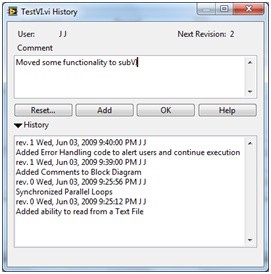
For help on the Revision History dialog, refer to: LabVIEW Help: History Window
Configuring VI Revision HistoryBy default, LabVIEW will never prompt users to comment changes made to a VI, but will automatically increment the Revision Number when changes to a VI are saved.
This can lead to situations of VIs being modified significantly without any documentation on what was changed. You can enforce documentation of changes to VIs by:
Automatically generating a comment every time a VI is savedPrompting for a comment when the VI is savedPrompting for a comment when the VI is closedTo set this behavior for the current VI:
Open the VI that you want to set this behavior forClick File»VI PropertiesSwitch the Category dropdown to Revision HistoryUncheck Use the default history settings from the Options dialog box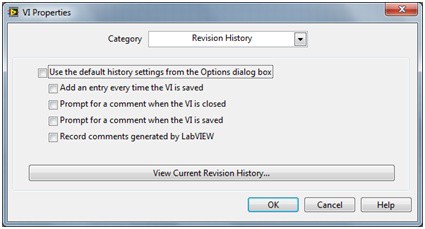
To set this behavior for every VI:
Click Tools»Options on the LabVIEW menu barSelect Revision History from the Category list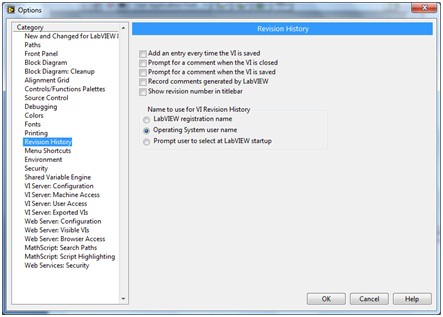
For more information regarding the Revision History Options, refer to LabVIEW Help: Setting up the VI Revision History
Programmatic access to Revision HistoryYou can also programmatically access the Revision History of a VI using the LabVIEW ActiveX server – VI Server. The VI class of VI Server has methods and properties that allow you to access the Revision History and set its properties using Invoke Nodes and Property Nodes.
For information regarding using Property Nodes and Invoke Nodes, refer to LabVIEW Help: Creating Property Nodes and Invoke Nodes.
For information regarding the Revision History properties and methods available, refer to LabVIEW Help: VI Properties and LabVIEW Help: VI Methods.
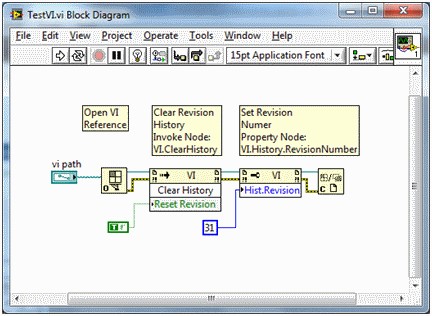
For example, the following screenshot shows a VI that takes the path to another VI as an input. First it opens a reference to the VI and clears the history of the VI and resets its Revision Number. Then it sets the Revision Number of the VI to 31 and finally closes the reference to the VI.
The LabVIEW Revision History feature is handy for keeping track of changes made to VIs, however its features are limited. For instance, The Revision History feature will not let you revert back to older versions of VIs not does it prevent multiple developers from accessing/modifying the same VI simultaneously. For advanced features required for large application development particularly in a team setting, NI recommends using 3rd party Source Code Control software for Revision Control.