Microsoft has removed our childhood from Windows by replacing the classical built-in games, which came with Windows 7, with more advanced and modern app-like-interfaced games. Let’s be honest, it’s not the same anymore!
Starting with Windows 8, legacy games were removed and replaced with Microsoft Store apps for games like Solitaire, Minesweeper, etc. However, you can now bring back your childhood by installing the same legacy games on your Windows 11 computer so you no longer have to bear those ugly, non-fun new games anymore.
Win7games has modified the gaming package to be installed (and compatible) with a bunch of other Windows versions as well. You can download, install, and run the Windows 7 games on the following operating systems:
Windows 11Windows 10Windows 8.1Windows 8Table of Contents
Windows 7 Games for Windows 11The following list of games can be installed on your Windows 11 PC:
Please enable JavaScript
Windows 7 featuresWatch on SolitaireSpider SolitaireMinesweeperFreeCellHeartsChess TitansMahjong TitansPurble PlaceInternet SpadesInternet CheckersInternet Backgammon
Let us now guide you through the process of installing these Windows 7 legendary games on your computer.
Download and Install Windows 7 Games in Windows 11Perform these steps to install the legacy Windows 11 games on a Windows 8, 10, or 11 computer:
Open the Win7games download page and click on the Download Games button. Download Windows 7 games package
The zip file will now be downloaded. Extract the contents into an empty folder.
 Extract contents
Now open the folder where the package is extracted and double-click the .exe file to run it. Run installation package
The game installation wizard will now run. On the first screen, select the language for the wizard from the drop-down menu and click Ok.
Note: The list of installation languages is shared below in this article.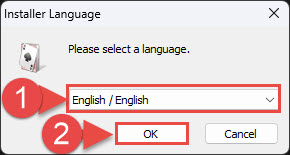 Select language
On the next screen, click Next to proceed. Proceed
Now select the games that you want to install and then click Install.
 Begin installation
The selected games will now be installed. Once done, click Finish to close the wizard. Close the wizard
Selected games will now be installed that you can enjoy by searching for them through the Search box or the Start Menu.
To play games, navigate to All Apps > Games and click on your favorite game to start the game. Please note that internet games may or may not work. For example, Internet Checkers and Chess Titans, which are internet games, didn’t work for me.
If you’d rather avoid the headache of going through the installation wizard, you can also perform a silent installation.
Silently Install Windows 7 Games on Windows 11You can also perform a silent installation without dealing with the wizard entirely. To do so, follow the steps below:
Open the Win7games download page and click on the Download Games button. This will download the setup file.Download Windows 7 games package
The zip file will now be downloaded. Extract the contents into an empty folder.Extract contents
Now open an elevated Command Prompt and then use the “cd” cmdlet followed by the complete path to the folder to change the directory to the extracted folder, as in the image below:
 Change directory
Now run the following command to install all of the listed games silently.
Windows7Games_for_Windows_11_10_8.exe /S Begin silent installation
The silent installation will now begin, but it would seem like nothing is happening. However, give the installation some time and you will see that it is, in fact, installing.
Supported Languages for Windows 7 GamesThe Windows 7 games package supports the following languages; Meaning, the game will run in any of the below-mentioned languages, depending upon your system’s locale:
Note: You can change the installation language during the installation on the first installation wizard screen.
Arabic (Saudi Arabia), ar-SABulgarian (Bulgaria), bg-BGCzech (Czech Republic), cs-CZDanish (Denmark), da-DKGerman (Germany), de-DEGreek (Greece), el-GREnglish (United States), en-USSpanish (Spain, International Sort), es-ESEstonian (Estonia), et-EEFinnish (Finland), fi-FIFrench (France), fr-FRHebrew (Israel), he-ILCroatian (Croatia), hr-HRHungarian (Hungary), hu-HUItalian (Italy), it-ITJapanese (Japan), ja-JPKorean (Korea), ko-KRLithuanian (Lithuania), lt-LTLatvian (Latvia), lv-LVNorwegian, Bokmål (Norway), nb-NODutch (Netherlands), nl-NLPolish (Poland), pl-PLPortuguese (Brazil), pt-BRPortuguese (Portugal), pt-PTRomanian (Romania), ro-RORussian (Russia), ru-RUSlovak (Slovakia), sk-SKSlovenian (Slovenia), sl-SISerbian (Latin, Serbia and Montenegro (Former)), Sr-Latin-CSSwedish (Sweden), sv-SEThai (Thailand), th-THTurkish (Turkey), tr-TRUkrainian (Ukraine), uk-UAChinese (Simplified, China), ZH-CNChinese (Traditional, Taiwan), zh-TWOnce the games are installed, it is time to run them.
Run Windows 7 Games on Windows 11Here’s how you can launch/run your favorite legacy game on a Windows 11 PC:
Open the Start menu and click All apps. Expand All Apps in Start menu
Now scroll down and expand Games under the “G” section. Here, you will see all of the installed games. Click on the one you would like to launch. Open your preferred game
Alternatively, you can also launch a game simply by searching for it in the Start menu or the search box on the taskbar.
Uninstall Windows 7 Games from Windows 11You can also remove the installed Windows 7 games from your computer if you no longer play them. However, the entire collection will be removed altogether. You cannot selectively delete the games.
Note: If you want to remove selective games only, we suggest that you uninstall the entire game package using the given guide below and then reinstall it through the installation wizard while selecting only the games you want to keep.
To remove the Windows 7 games, open the Programs and Features page by typing in appwiz.cpl in Run Command box and then double-click “Windows 7 Games for Windows 11, 10, and 8” to remove it. If prompted with a confirmation box, click Yes.
 Uninstall all Windows 7 Games from Windows 11 Control Panel
Alternatively, you can also uninstall these games through the Settings app by navigating to Apps >> Apps and features, then click on the ellipses in front of “Windows 7 Games for Windows 11, 10, and 8,” and then click Uninstall.
 Uninstall all Windows 7 Games from Windows 11 Settings appFAQsDo Windows 7 games work on Windows 11?
Since there are no significant architectural differences between Windows 7 and Windows 11, the games that worked on Windows 7 should also work on Windows 11.
How to get Windows 7 games on Windows 11/10?You can download the Windows 7 gaming package from https://win7games.com/#games and install it on your Windows 11, Windows 10, or Windows 8 device.